Order Settings
Comprehensive configuration for order numbering, bin availability, and customer notifications.
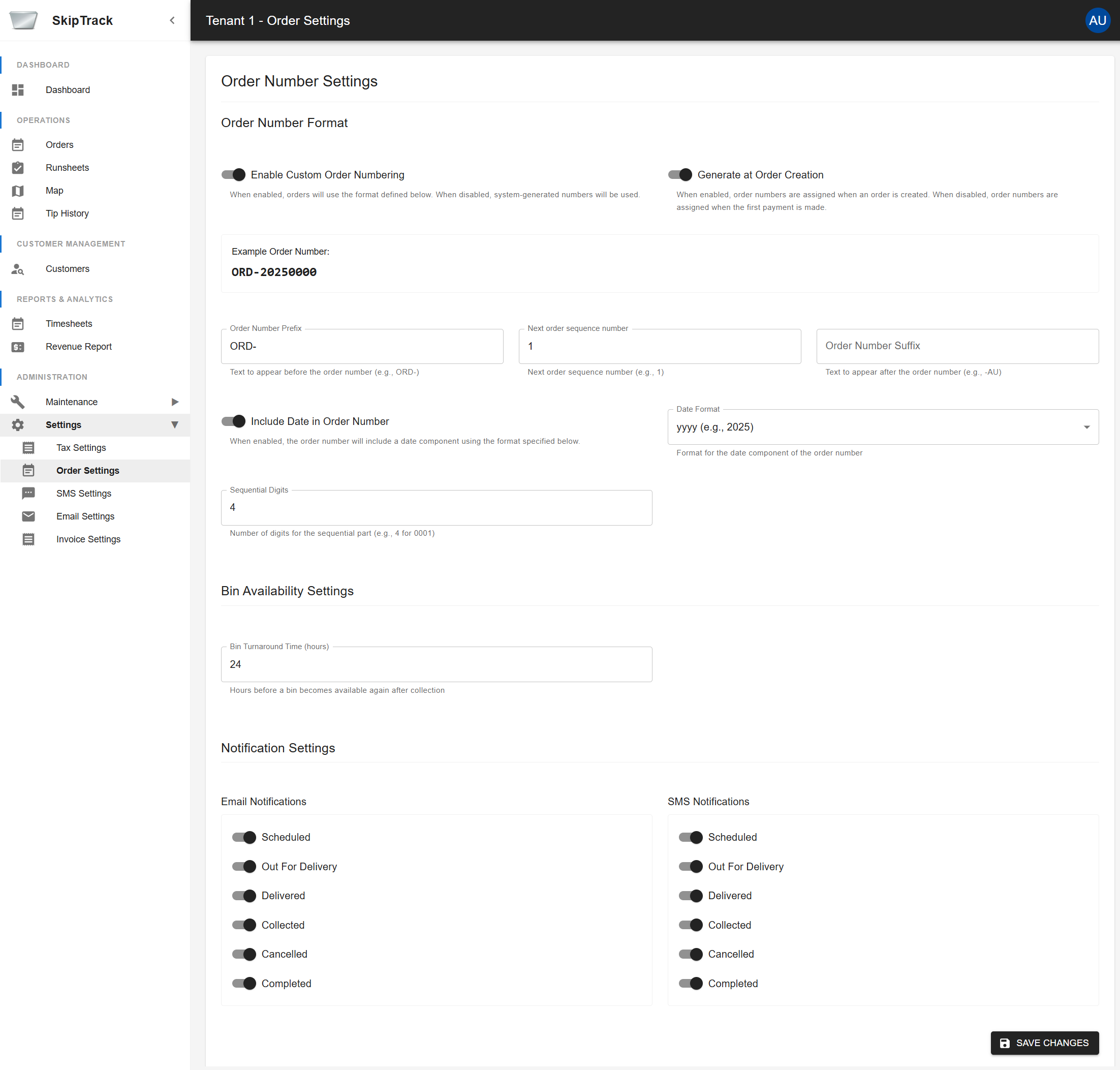
Order Number Format
Enable Custom Order Numbering
- When enabled, orders use the format defined in this section
- When disabled, system-generated numbers are used
Generate at Order Creation
- When enabled, order numbers are assigned when an order is created
- When disabled, order numbers are assigned when the first payment is made
Order Number Components
- Order Number Prefix: Text to appear before the order number (e.g., "ORD-")
- Next Order Sequence Number: Starting number for sequential numbering
- Order Number Suffix: Text to appear after the order number (e.g., "-AU")
Date Integration
- Include Date in Order Number: Add date component to order numbers
- Date Format: Choose from multiple date formats:
- yyyy (e.g., 2025)
- yyMMdd (e.g., 230507)
- yyyyMMdd (e.g., 20230507)
- ddMMyy (e.g., 070523)
- MMddyy (e.g., 050723)
Sequential Digits: Set number of digits for the sequential part (e.g., 4 for 0001)
Example Order Number: The system shows a preview of how your order numbers will look based on current settings (e.g., "ORD-20250000")
Bin Availability Settings
Bin Turnaround Time (hours)
- Set how many hours before a bin becomes available again after collection
- Default is 24 hours
- This affects bin availability calculations in the system
Notification Settings
Configure automatic notifications sent to customers when order status changes.
Email Notifications
Enable email notifications for the following order statuses:
- Scheduled
- Out For Delivery
- Delivered
- Out For Collection
- Collected
- Cancelled
- Completed
SMS Notifications
Enable SMS notifications for the following order statuses:
- Scheduled
- Out For Delivery
- Delivered
- Out For Collection
- Collected
- Cancelled
- Completed
Saving Changes
Click Save Changes to apply your order settings. All changes take effect immediately.