Tenant Selection
The SkipTrack Management Dashboard supports multi-tenant architecture, allowing users to manage multiple organizations or business units from a single account. This guide explains how to select and switch between different tenants.
Overview
When you have access to multiple tenants (organizations), you'll need to select which tenant you want to work with. This selection determines:
- Which data and customers you can access
- Which reports and analytics are displayed
- Which settings and configurations apply
- Which routes and schedules are visible
Accessing Tenant Selection
The tenant selection screen appears automatically in these scenarios:
- First login with multiple tenants: When you log in and have access to multiple organizations
- Manual navigation: When you specifically navigate to switch tenants
Automatic Redirect Scenarios
- New user with multiple tenants: After successful login, you'll be redirected to select your active tenant
- User without selected tenant: If no tenant is currently selected, the system will prompt you to choose one
Tenant Selection Interface
The tenant selection page provides a clean, simple interface to choose your active organization.
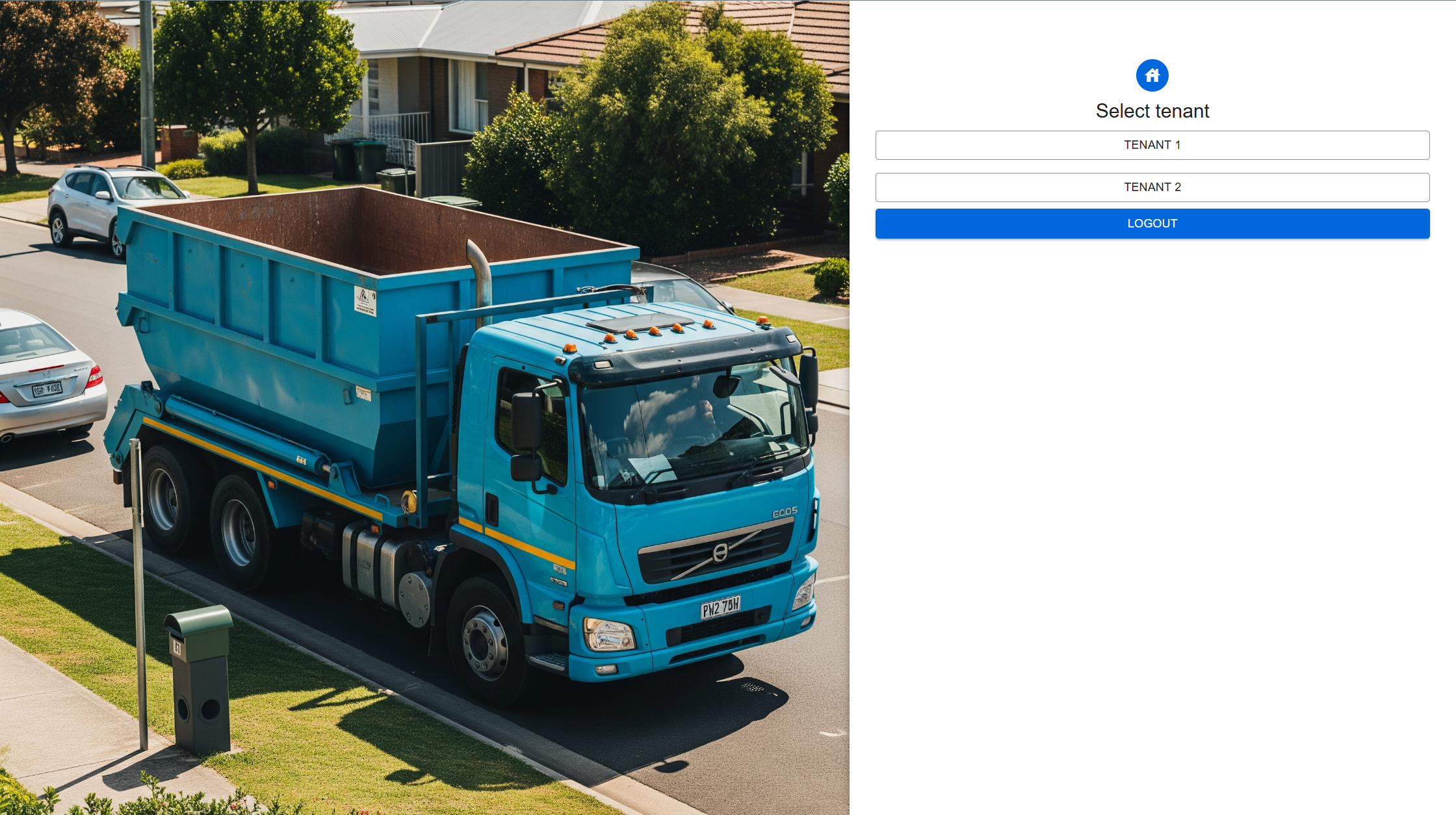
The tenant selection screen shows a list of available organizations with a simple, user-friendly interface.
Making a Selection
- Review Available Tenants: All organizations you have access to are listed as individual buttons
- Click to Select: Click on the tenant name button (e.g., "Acme Waste Management") for the organization you want to manage
- Automatic Redirect: The system automatically redirects you to the main dashboard for the selected tenant
Switching Between Tenants
During an Active Session
To switch to a different tenant while already logged in:
- Access Profile Menu: Click on your profile/avatar in the top navigation
- Select "Switch Tenant": Choose the option to change your active tenant
- Tenant Selection: You'll be taken back to the tenant selection screen
- Choose New Tenant: Select the different organization you want to manage
- Context Switch: The dashboard will reload with the new tenant's data

Troubleshooting
Common Issues
Problem: Can't see expected tenants in the list
- Solution: Contact your administrator to verify tenant access permissions
- Check: Ensure your user account has been granted access to the required organizations
Problem: Tenant selection page keeps appearing
- Solution: This usually indicates a session or token issue
- Steps: Try logging out completely and logging back in
Problem: Wrong data appearing after tenant selection
- Solution: Verify you selected the correct tenant
- Steps: Use the profile menu to switch tenants or navigate to
/select-tenant
Problem: Unable to access certain features after selecting tenant
- Solution: Your permissions may be different for this tenant
- Check: Contact your administrator to review your role and permissions for this organization