Orders Management
This guide will walk you through managing orders in SkipTrack, including viewing, creating, and managing delivery and collection schedules.
Overview
The Orders module is the heart of SkipTrack's waste management system, providing comprehensive tools for managing bin deliveries and collections. The system offers dual viewing modes (calendar and list), advanced search and filtering capabilities, and a multi-step order creation wizard.
Accessing Orders
Navigate to Operations > Orders from the main navigation menu.
Viewing Orders
Calendar View
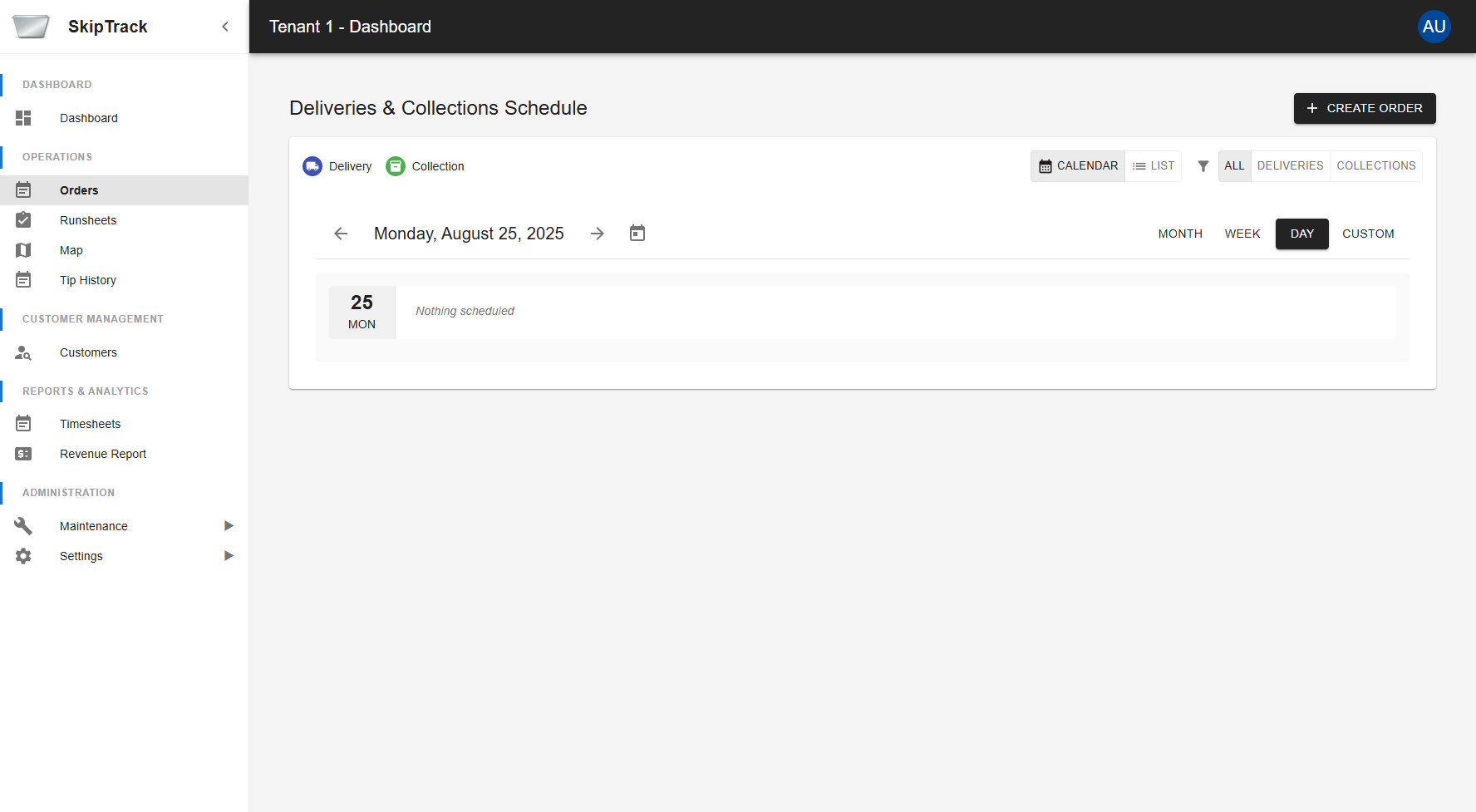
The default calendar view provides a visual timeline of scheduled deliveries and collections:
- Monthly Calendar: Shows orders scheduled by date
- Visual Timeline: Easy to see busy periods and available slots
- Date Navigation: Click on dates to view specific day details
- Empty State: Shows when no orders are scheduled
List View
Switch to list view for detailed tabular information:
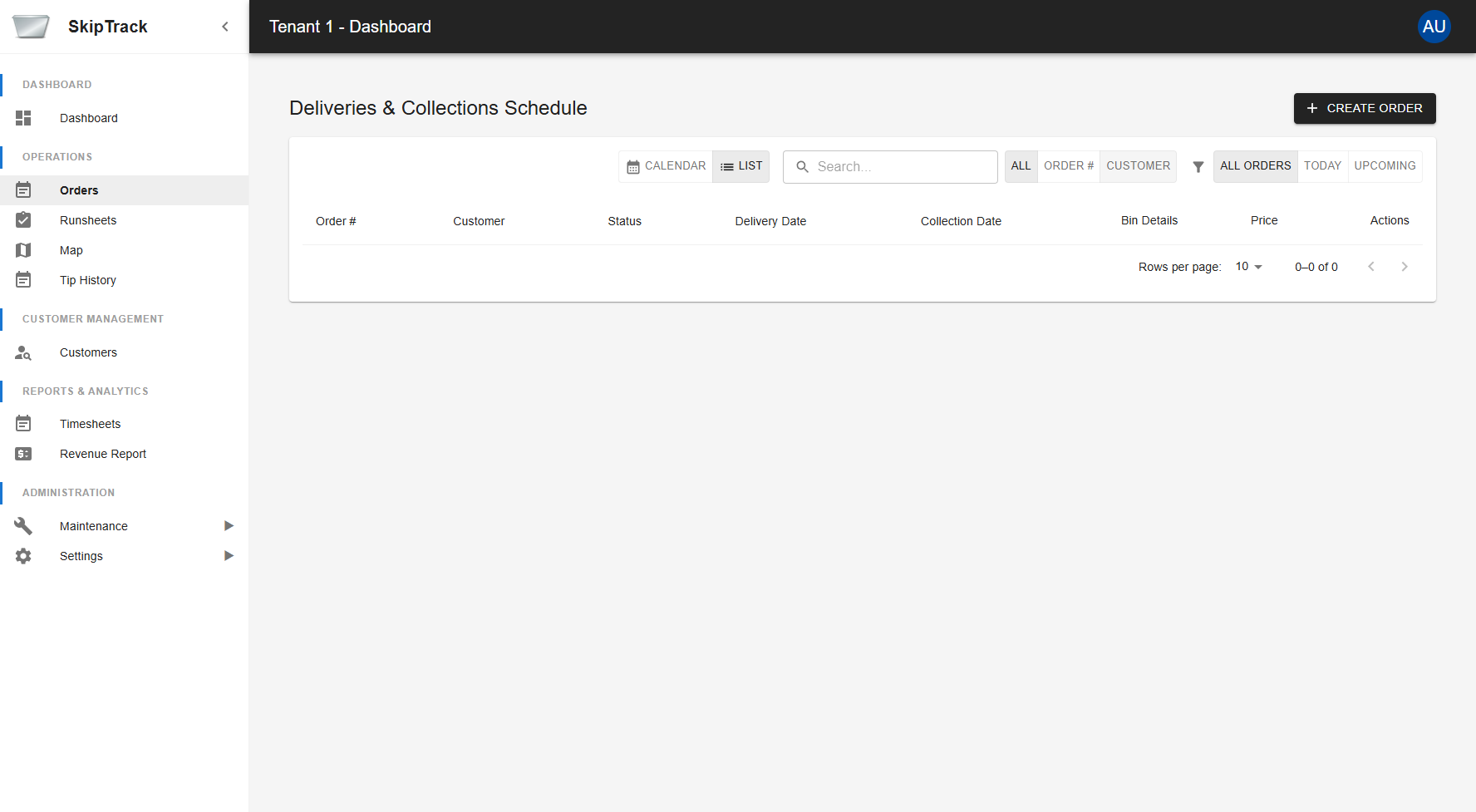
The list view displays:
- Order #: Unique order identifier
- Customer: Customer name and details
- Status: Current order status
- Delivery Date: Scheduled delivery date
- Collection Date: Scheduled collection date
- Bin Details: Bin type and specifications
- Price: Order total amount
- Actions: Available actions for each order
Search and Filtering
The system provides comprehensive search and filtering options:
Search Options:
- All Fields: Search across all order information
- Order #: Search by specific order number
- Customer: Search by customer name
Filter Options:
- All Orders: View all orders regardless of date
- Today: Show only today's scheduled orders
- Upcoming: Display future scheduled orders
Creating a New Order
Click the CREATE ORDER button to start the multi-step order creation process.
Step 1: Select Customer
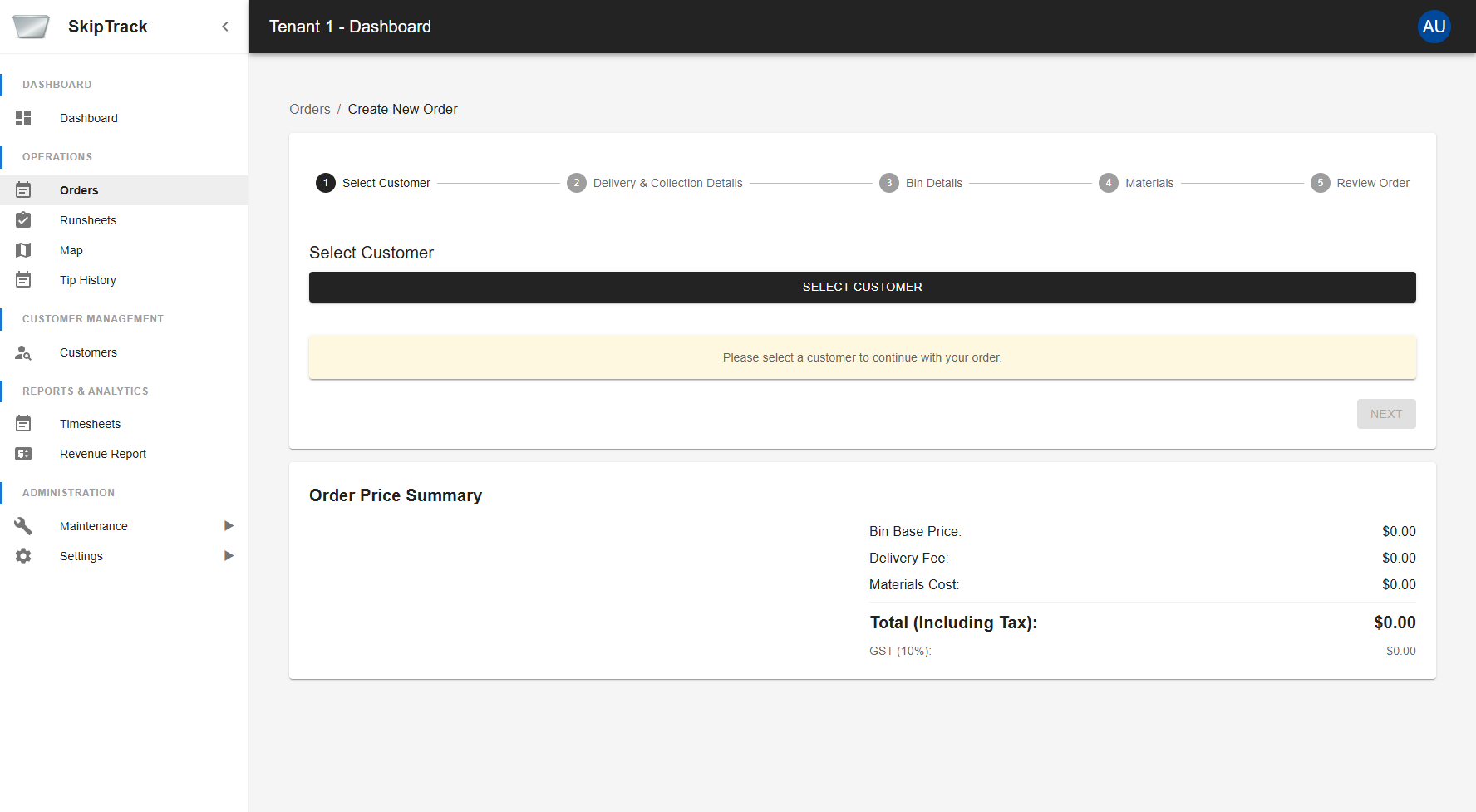
- Click SELECT CUSTOMER to open the customer selection dialog
- The dialog provides two tabs:
- Find Customer: Search and select from existing customers
- Create New Customer: Add a new customer on-the-fly
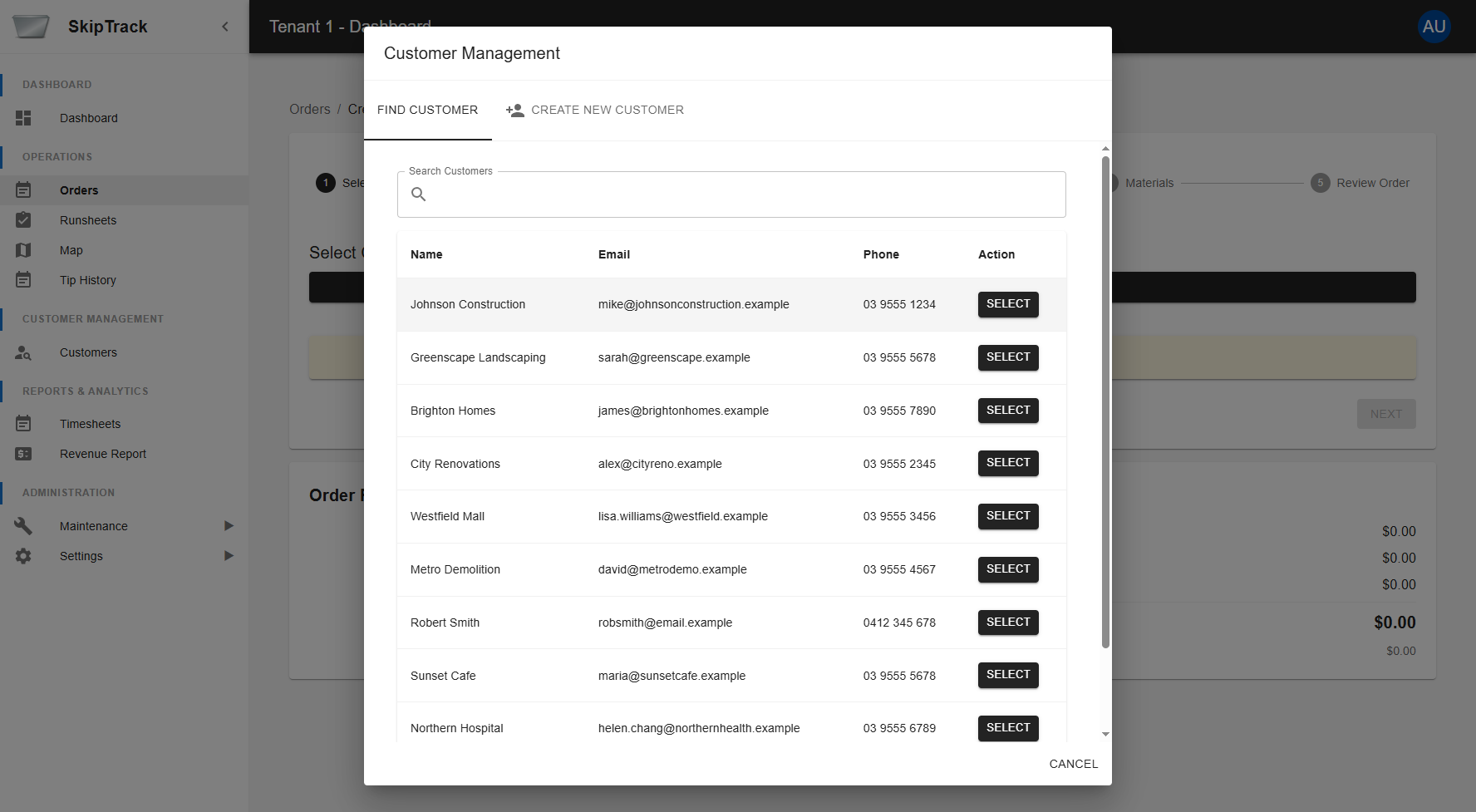
- Use the search bar to quickly find customers
- Review customer details including name, email, and phone
- Click SELECT for the desired customer
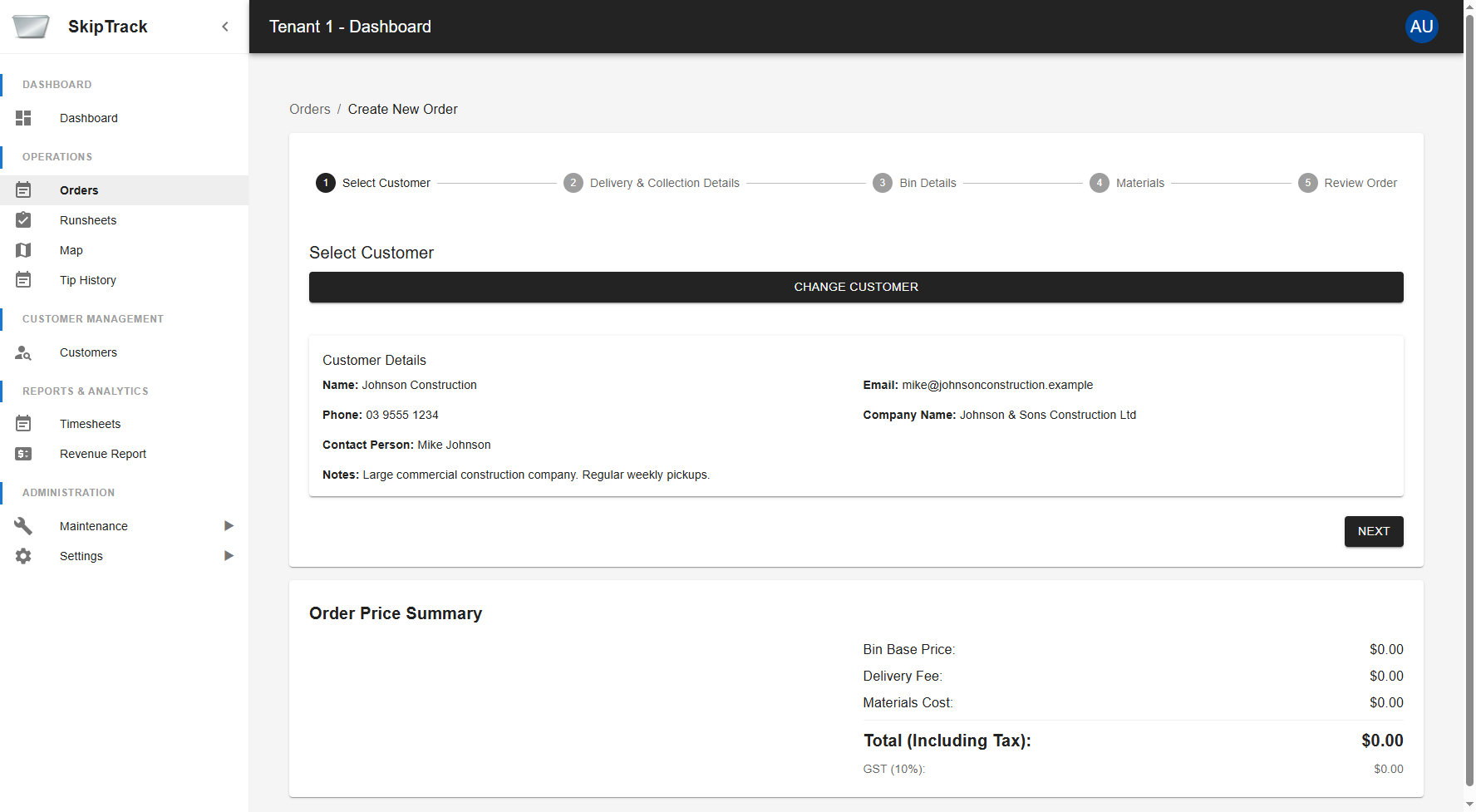
Once selected, the system displays:
- Complete customer information
- Contact details
- Company information
- Special notes
- CHANGE CUSTOMER button to select a different customer
Step 2: Delivery & Collection Details
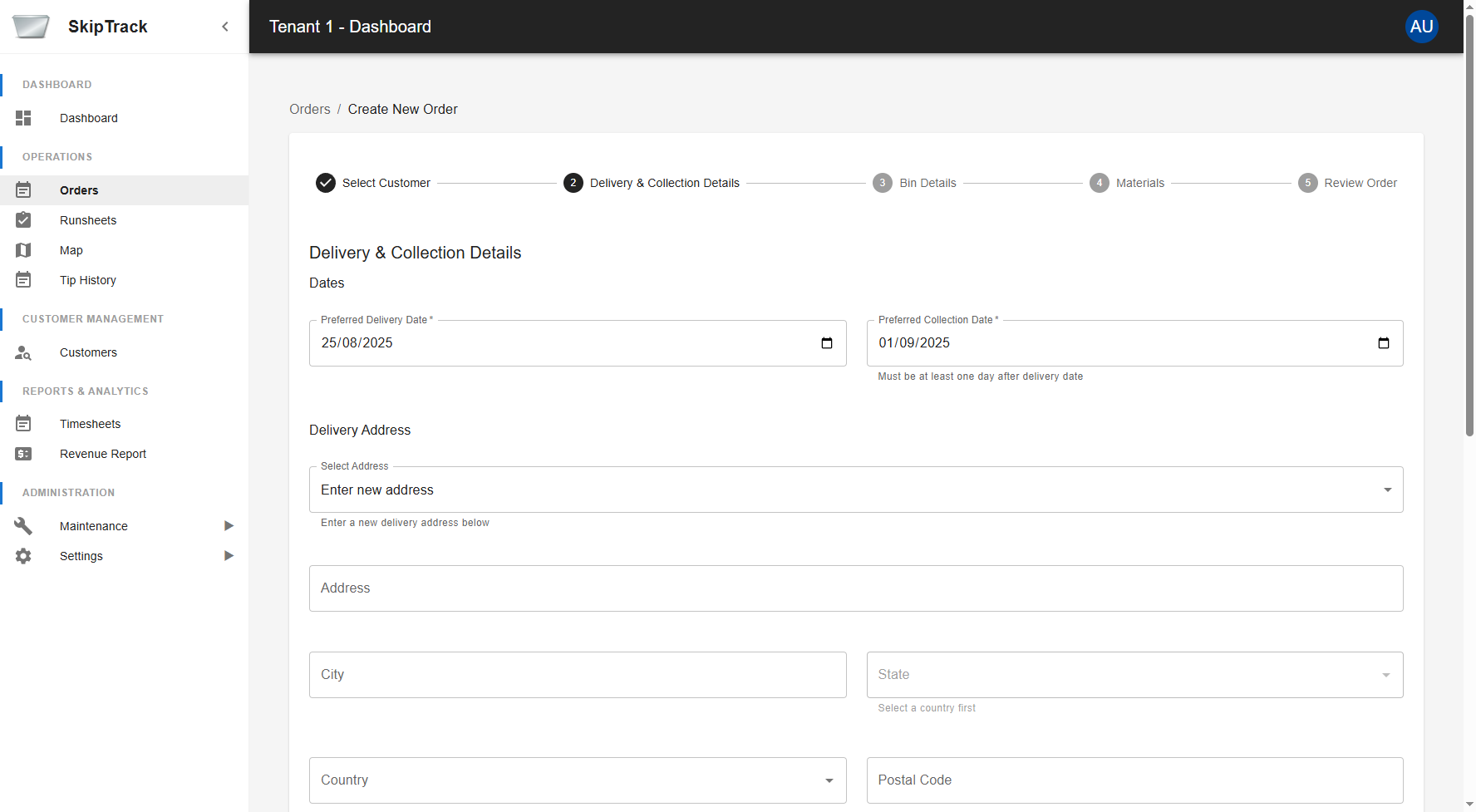
Configure the essential scheduling and location information:
Dates Section
- Preferred Delivery Date: Select when the bin should be delivered
- Preferred Collection Date: Must be at least one day after delivery
- Date Validation: System automatically enforces minimum collection timeframe
Delivery Address
- Address Selection: Choose from existing customer addresses or enter new
- Address Autocomplete: System provides address suggestions
- Geographic Fields: Address, City, State, Country, Postal Code
- Address Validation: Ensures complete and valid delivery location
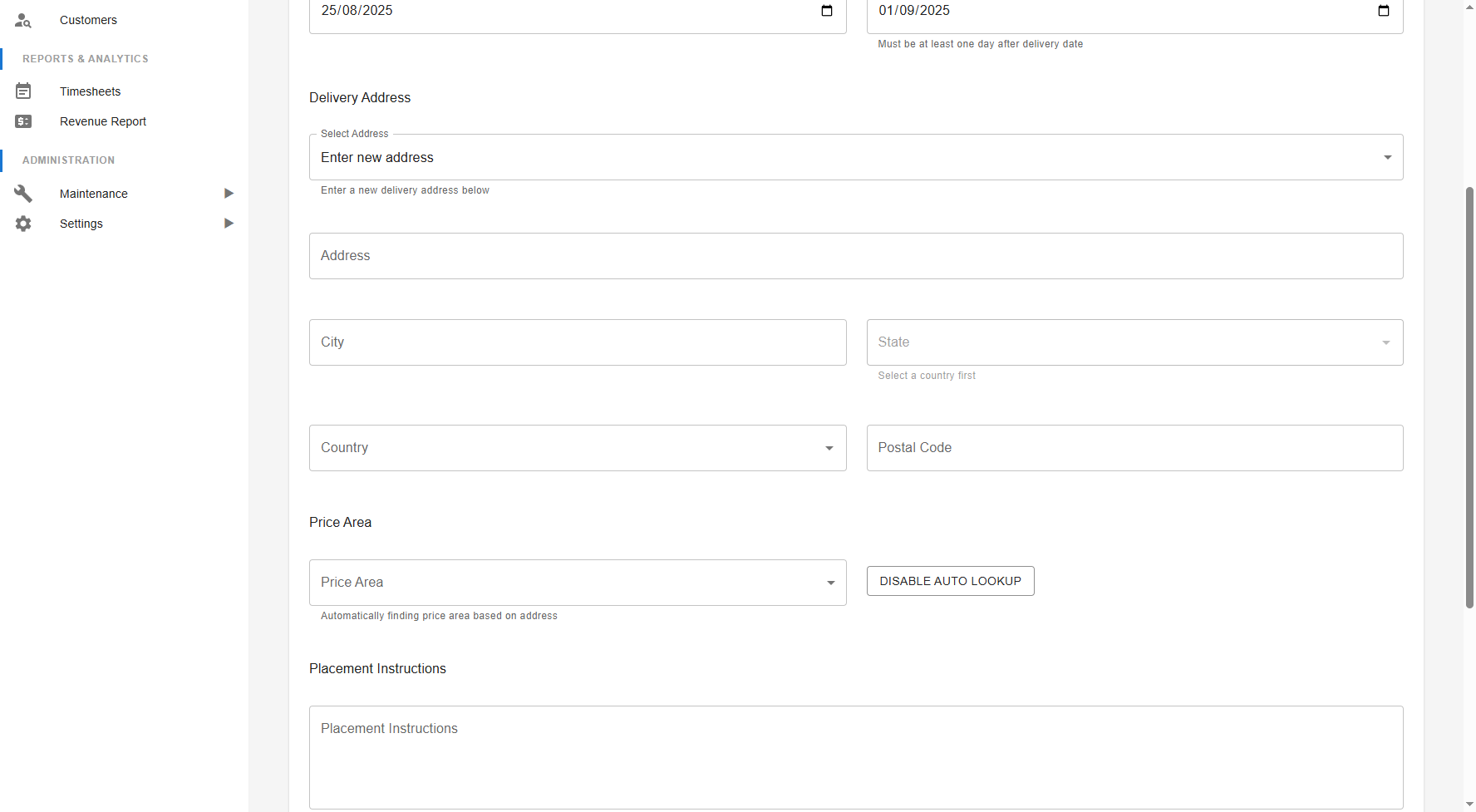
Price Area
- Automatic Detection: System automatically determines pricing area based on address
- Manual Override: Use "DISABLE AUTO LOOKUP" for manual selection
- Price Calculation: Pricing adjusts based on selected area
Placement Instructions
- Special Instructions: Detailed placement requirements
- Access Information: Gate codes, special access requirements
- Safety Notes: Any safety considerations for delivery/collection
Step 3: Bin Details
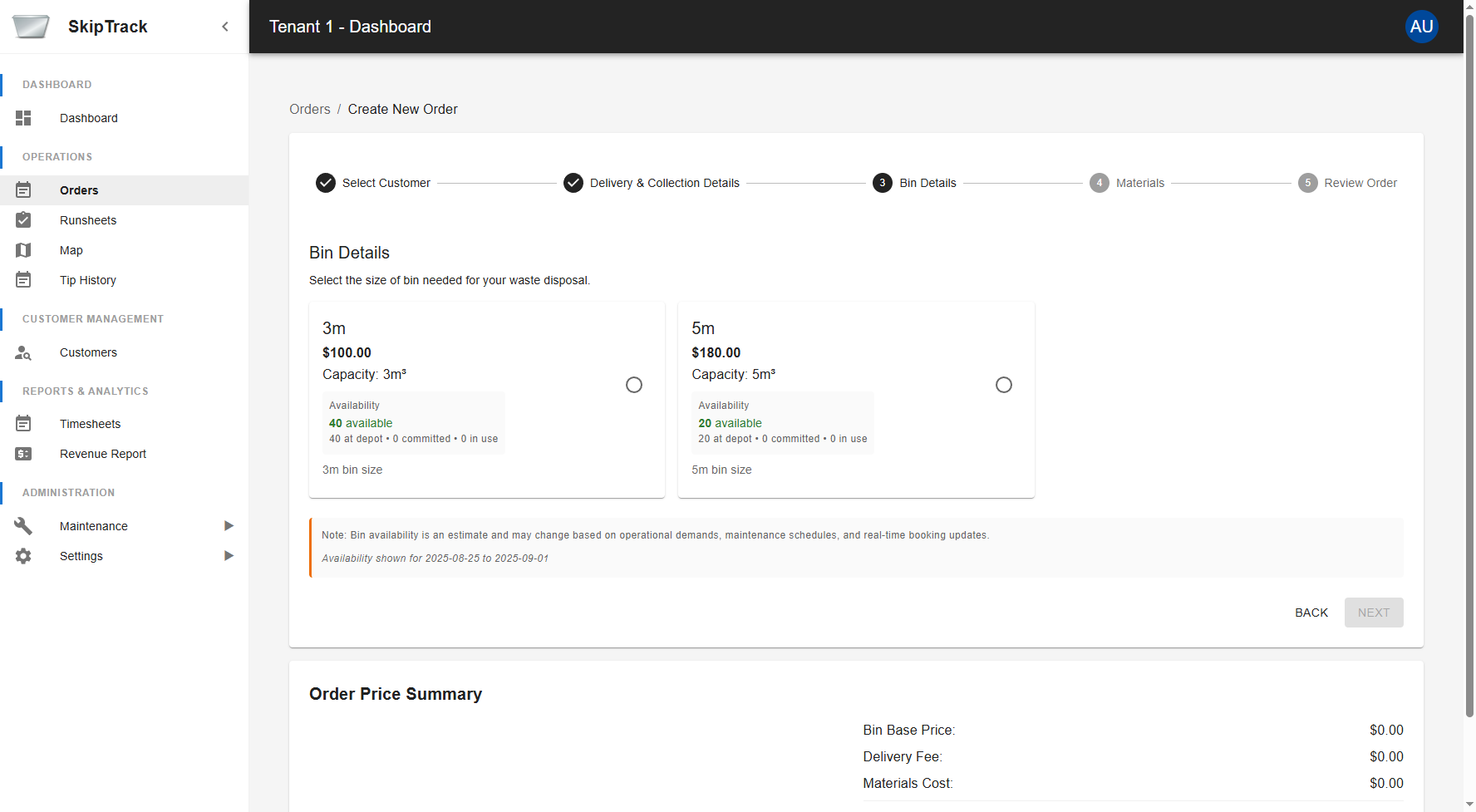
Select the appropriate bin size for your waste disposal needs:
Bin Size Options
The system displays available bin sizes with:
- Size Specifications: Volume capacity (e.g., 3m³, 5m³)
- Pricing Information: Base price for each bin size
- Availability Status: Real-time availability including:
- Number available at depot
- Number committed to other orders
- Number currently in use
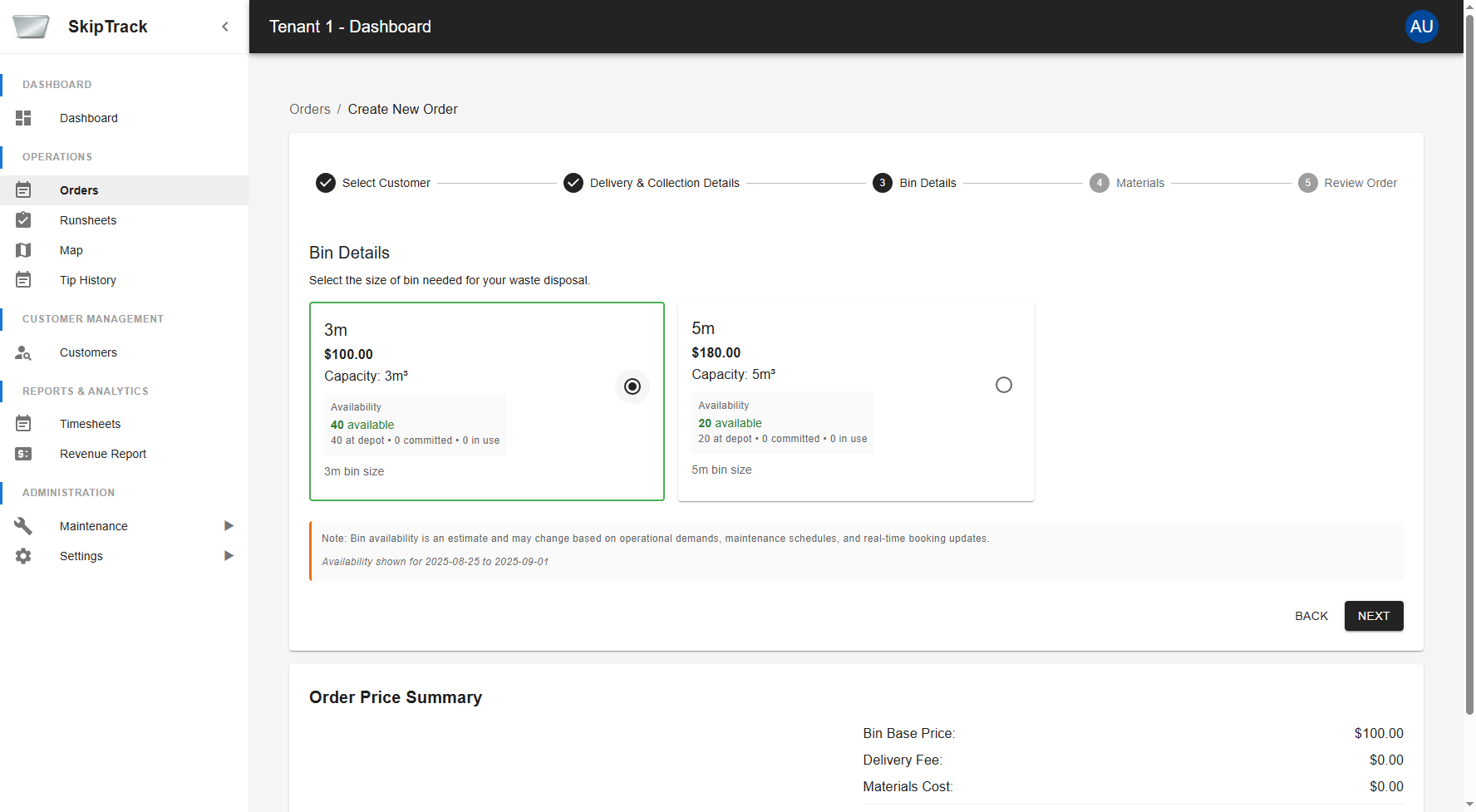
Once selected:
- Price Update: Order Price Summary updates with bin base price
- Availability Note: System shows availability estimates and disclaimers
- Visual Confirmation: Selected bin is highlighted with green border
Availability Information
- Real-time Data: Availability shown for your specific date range
- Estimates: Numbers are estimates and may change based on operational demands
- Transparency: Clear breakdown of depot stock, committed, and in-use bins
Step 4: Materials to be Disposed
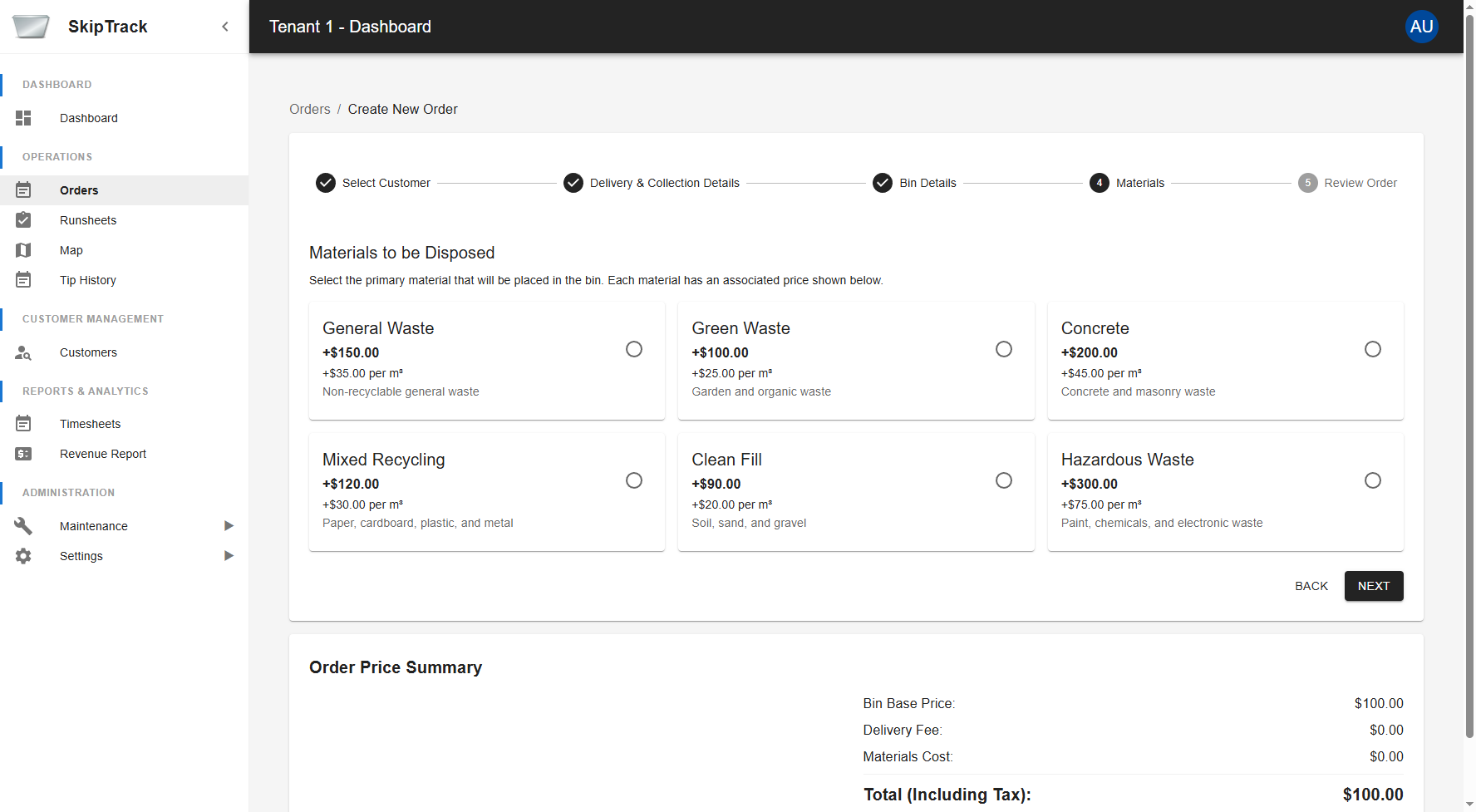
Specify the primary material type that will be placed in the bin:
Material Types Available
The system displays material categories that are configured by administrators in Maintenance > Materials. The available material types and their pricing will vary based on your organization's setup.
Example material types:
- General Waste: Non-recyclable general waste (+$150.00 + $35.00 per m³)
- Green Waste: Garden and organic waste (+$100.00 + $25.00 per m³)
- Concrete: Concrete and masonry waste (+$200.00 + $45.00 per m³)
- Mixed Recycling: Paper, cardboard, plastic, and metal (+$120.00 + $30.00 per m³)
- Clean Fill: Soil, sand, and gravel (+$90.00 + $20.00 per m³)
- Hazardous Waste: Paint, chemicals, and electronic waste (+$300.00 + $75.00 per m³)
Note: These are example configurations. Your organization's available material types and pricing may differ. Contact your system administrator to configure or modify material types in the Maintenance section.
Pricing Structure
Each material type has:
- Base Fee: Fixed charge for material type
- Volume Fee: Additional charge per cubic meter of bin capacity
- Clear Descriptions: Detailed explanation of what's included in each category
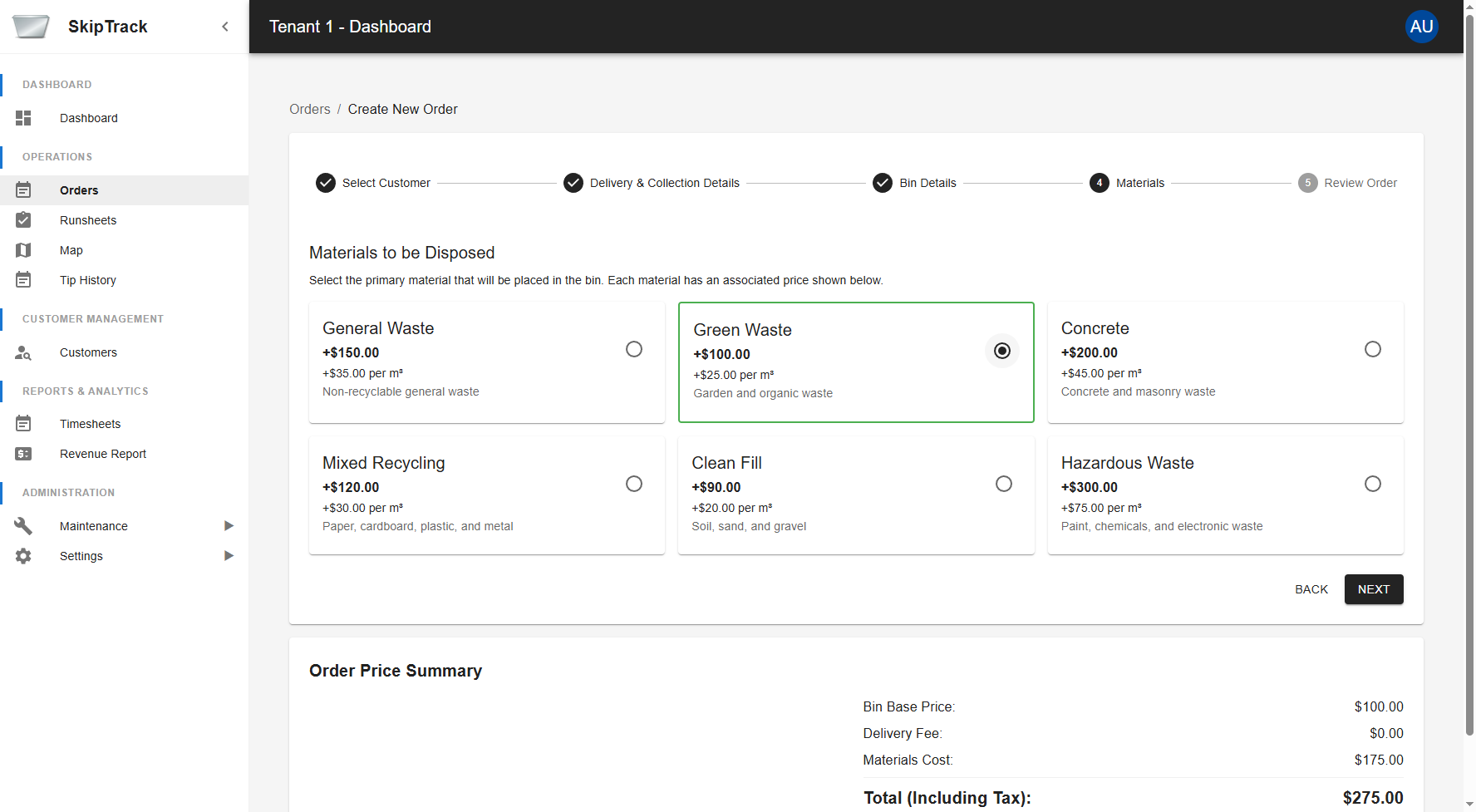
When a material is selected:
- Price Calculation: Materials cost automatically added to order total
- Visual Confirmation: Selected material highlighted with green border and checkmark
- Total Update: Order Price Summary reflects new materials cost
Step 5: Review Order
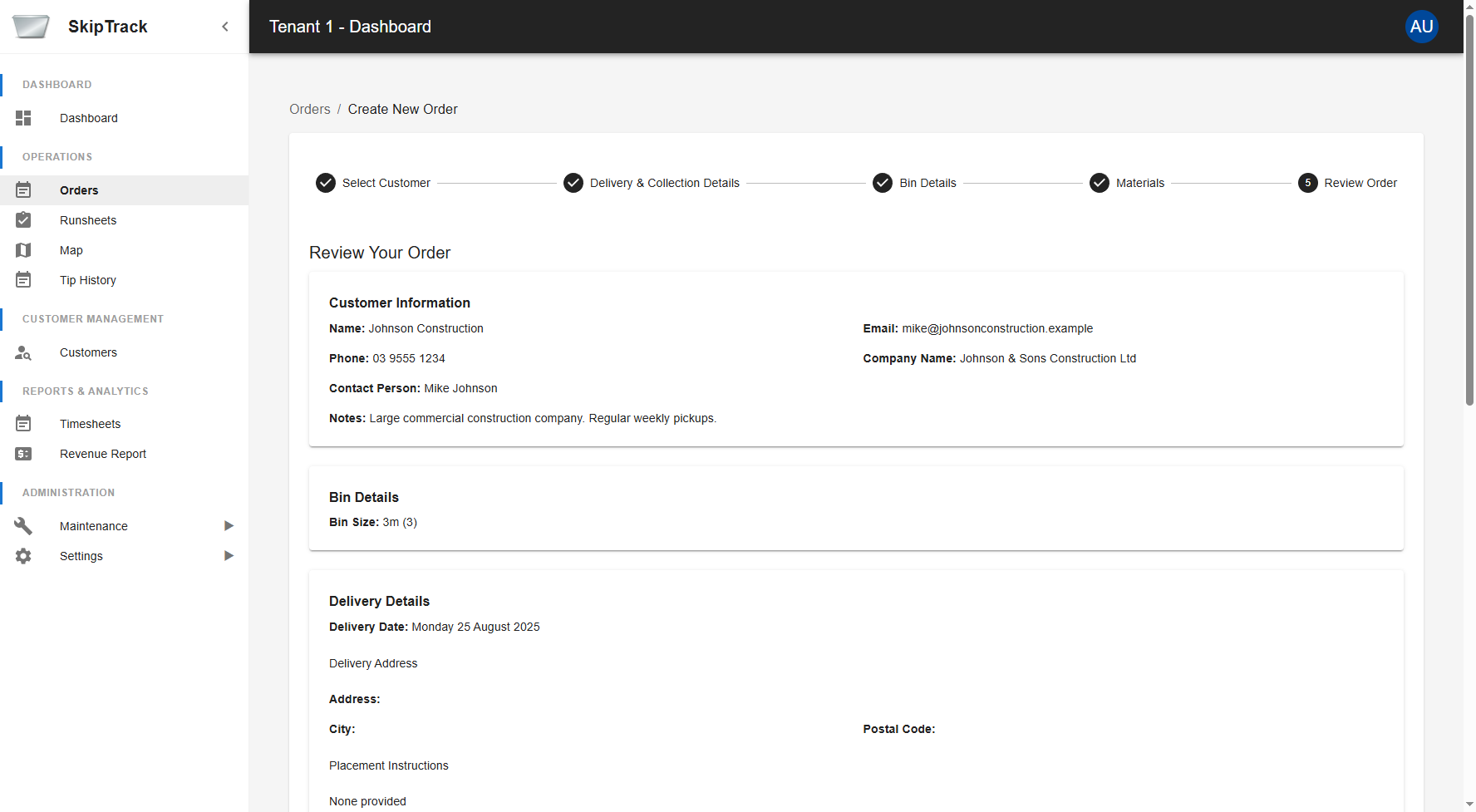
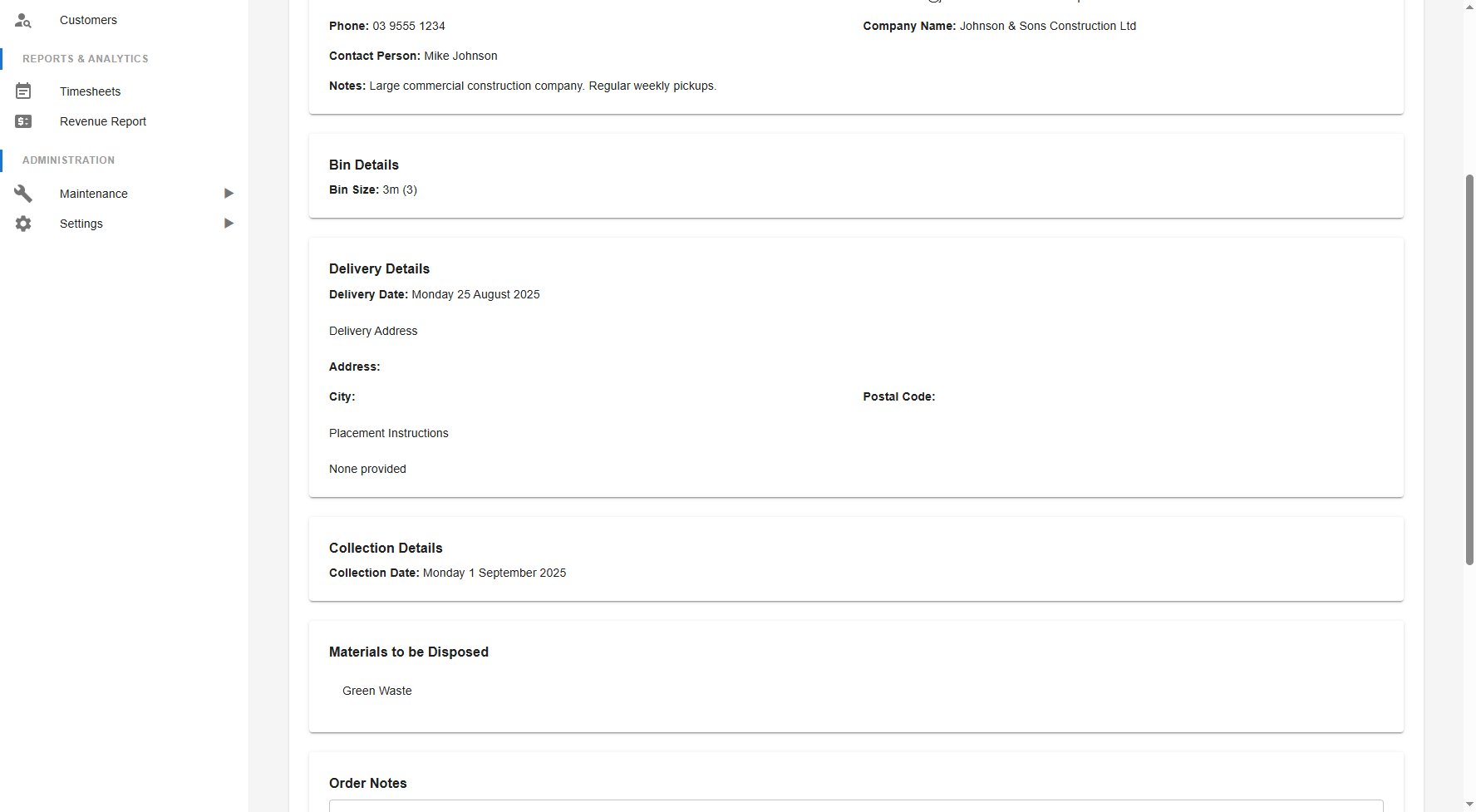
The final step provides a comprehensive review of all order details:
Customer Information Review
- Contact Details: Name, email, phone number
- Company Information: Company name and contact person
- Customer Notes: Any special notes about the customer
Service Details Summary
- Bin Details: Selected bin size and specifications
- Delivery Details: Date, address, and placement instructions
- Collection Details: Scheduled collection date
- Materials: Selected waste material type
Additional Options
- Order Notes: Free-text field for special instructions or requirements
- Price Override: Checkbox to manually override calculated pricing (admin feature)
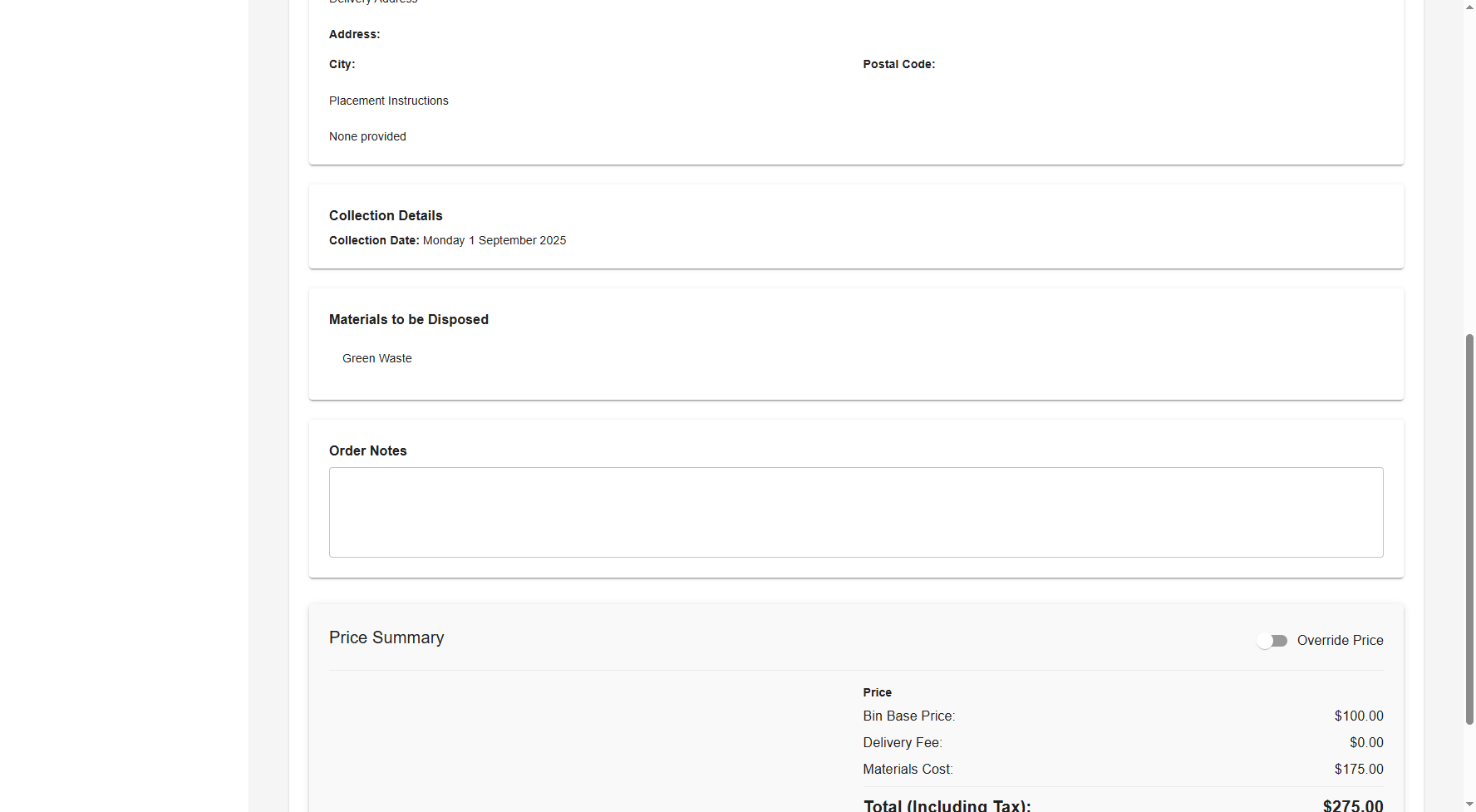
Final Price Summary
Complete breakdown including:
- Bin Base Price: Cost for selected bin size
- Delivery Fee: Transportation charges
- Materials Cost: Waste material processing charges
- GST (10%): Automatic tax calculation
- Total (Including Tax): Final order amount
Order Submission
- Place Order Button: Submit the completed order
- Back Button: Return to previous step for modifications
- Data Validation: System ensures all required information is complete
Order Price Summary
Throughout the creation process, the Order Price Summary panel displays:
- Bin Base Price: Base cost for the bin rental
- Delivery Fee: Transportation and delivery charges
- Materials Cost: Additional material or service fees
- Total (Including Tax): Final amount including GST
- GST Calculation: Automatic 10% GST calculation
- Real-time Updates: Prices update as options are selected
Navigation Controls
Each step includes:
- Back Button: Return to previous step
- Next Button: Proceed to next step (enabled when required fields are complete)
- Step Indicator: Visual progress through the 5-step process
Key Features
Multi-Step Wizard
The order creation process is broken into logical steps:
- Select Customer: Choose or create customer
- Delivery & Collection Details: Scheduling and location
- Bin Details: Select bin type and specifications
- Materials: Specify waste materials and requirements
- Review Order: Final confirmation and submission
Dual View System
- Calendar View: Visual timeline for scheduling
- List View: Detailed tabular information
- Quick Toggle: Easy switching between views
Advanced Search
- Multi-field Search: Search across all order data
- Targeted Search: Search specific fields like order number or customer
- Real-time Results: Instant search results as you type
Smart Filtering
- Date-based Filters: Today, upcoming, or all orders
- Status Filtering: Filter by order status
- Combined Filtering: Use search and filters together
Real-time Pricing
- Dynamic Calculation: Prices update based on selections
- Transparent Breakdown: Clear cost itemization
- Tax Calculation: Automatic GST inclusion
- Area-based Pricing: Pricing varies by delivery location