Personnel Management
This section covers the management of staff, user accounts, and access control throughout your waste collection organization.
Drivers Management
Purpose: Manage driver personnel, licensing, and truck assignments.
Key Features
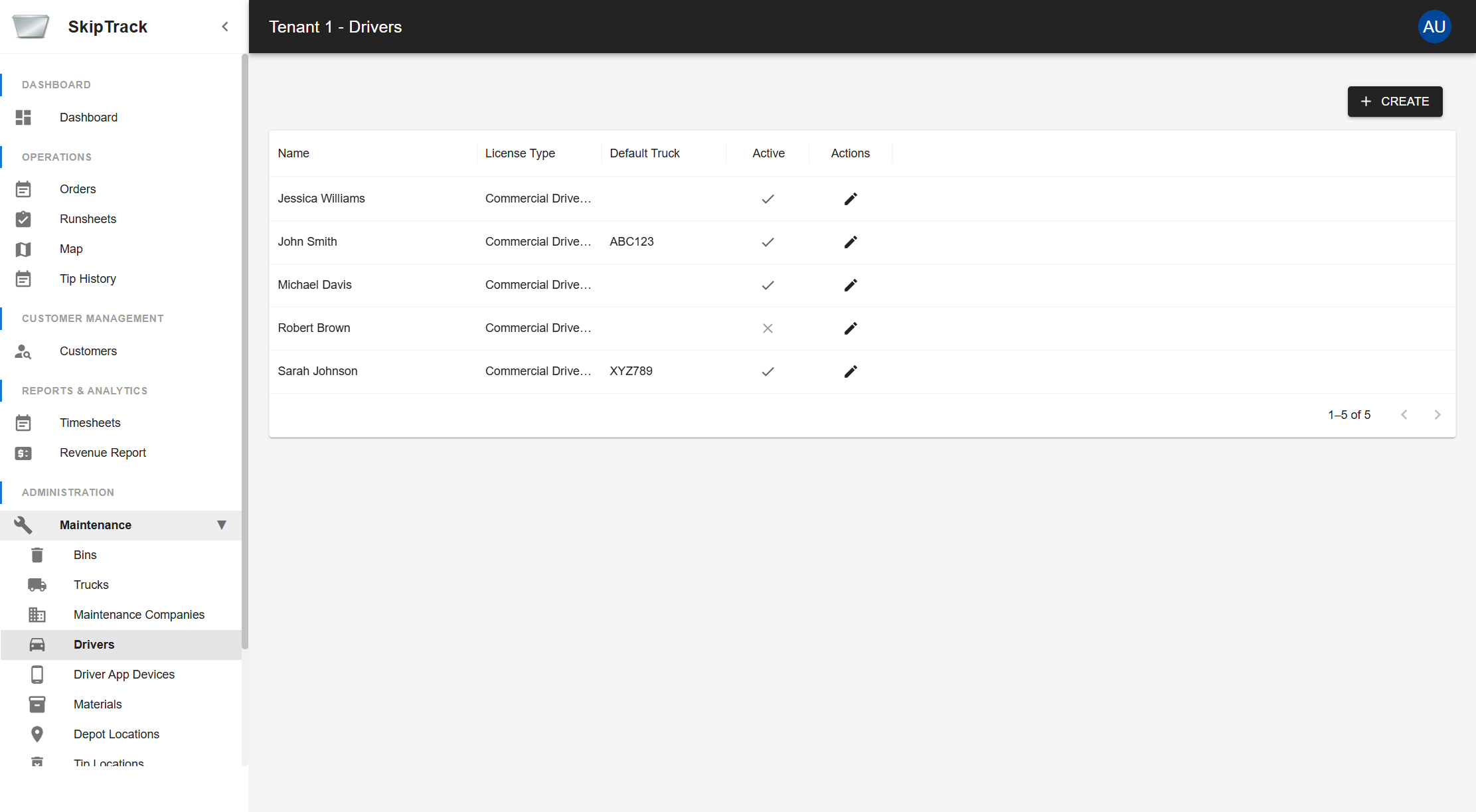
- Driver List: View all drivers in a data grid format
- License Types: Track commercial driver's license classes (Class A, B, C)
- Default Truck Assignment: Assign specific trucks to drivers (e.g., ABC123, XYZ789)
- Active Status: Enable/disable driver accounts with visual indicators
- Edit Access: Quick edit access via action buttons
Driver Information Displayed
- Name: Driver's full name (Jessica Williams, John Smith, etc.)
- License Type: Commercial Driver's License classifications
- Default Truck: Assigned truck registration numbers
- Active Status: Visual checkmark/X indicating active/inactive status
- Actions: Edit button for modifying driver details
Management Actions
- Create New Drivers: Use the "CREATE" button to add new drivers
- Edit Existing Drivers: Click the edit icon in the Actions column
- View Driver Details: Access detailed driver information and history
- Assign Trucks: Link drivers to their default vehicles
- Manage Status: Activate or deactivate driver accounts
Driver Information Management
- Personal Details: Full name, address, phone numbers, and email
- Employment Information: Hire date, employee ID, and department
- License Details: Commercial driver's license number and expiry
Driver App Devices
Purpose: Manage mobile devices used by drivers in the field for the SkipTrack mobile application.
Key Features
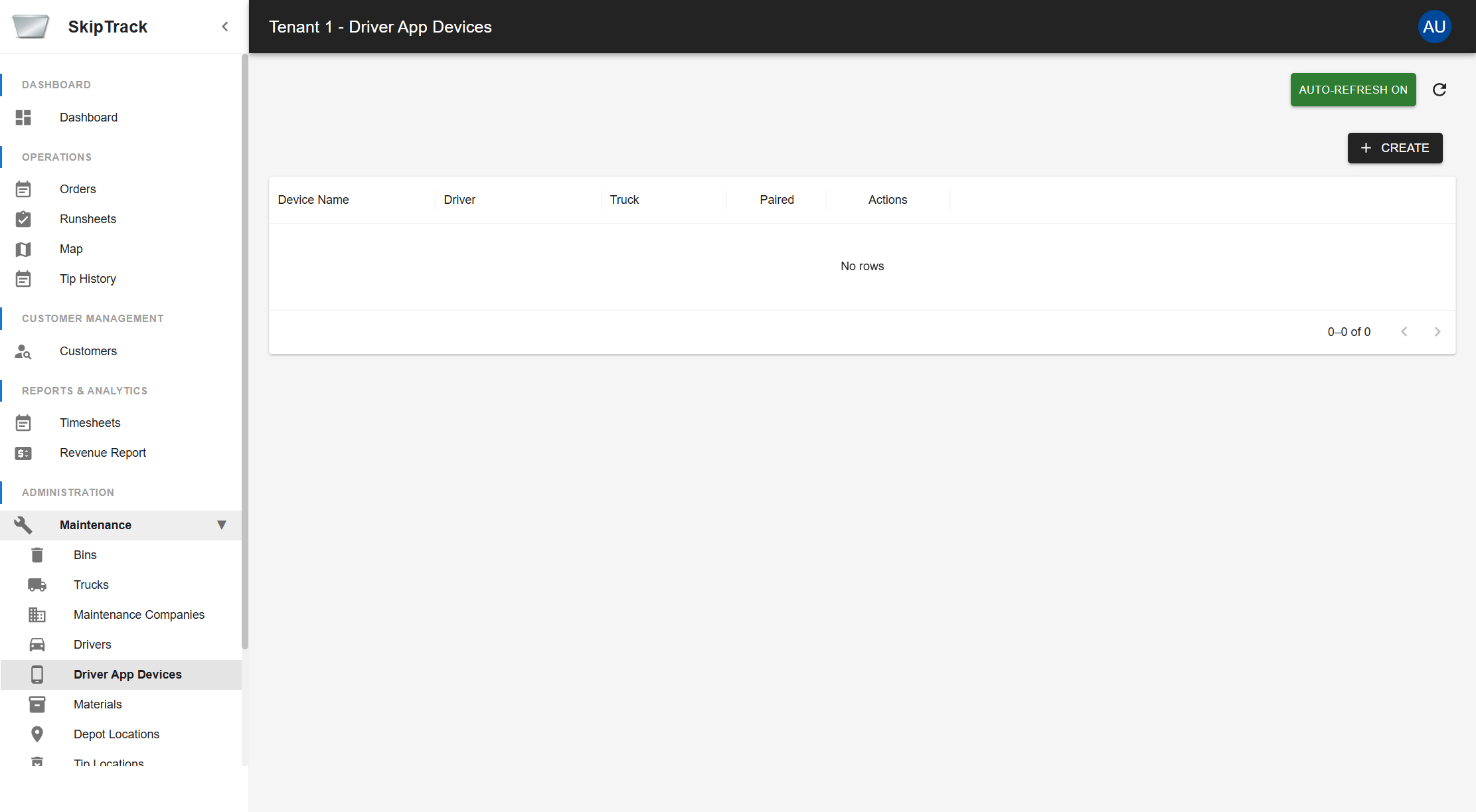
- Device Registry: Track all mobile devices configured for driver use
- Driver Assignment: Link devices to specific drivers
- Truck Assignment: Associate devices with specific trucks
- Pairing Status: Monitor which devices are paired and active
- Auto-Refresh: Automatic updates every 30 seconds to show real-time status
- Manual Refresh: On-demand data refresh capabilities
Device Management Interface
- Device Name: Unique identifier for each mobile device
- Driver: Associated driver using the device
- Truck: Truck assigned to the device
- Paired: Status indicator showing if device is paired with the system
- Actions: Management options for each device
Management Functions
- Create New Devices: Add new mobile devices to the system
- Device Pairing: Generate pairing codes for new device setup
- Real-time Monitoring: Auto-refresh feature shows current device status
- Assignment Management: Link devices to drivers and trucks
- Status Tracking: Monitor paired/unpaired status of all devices
Users Management
Purpose: Manage user accounts and access to the system.
Key Features
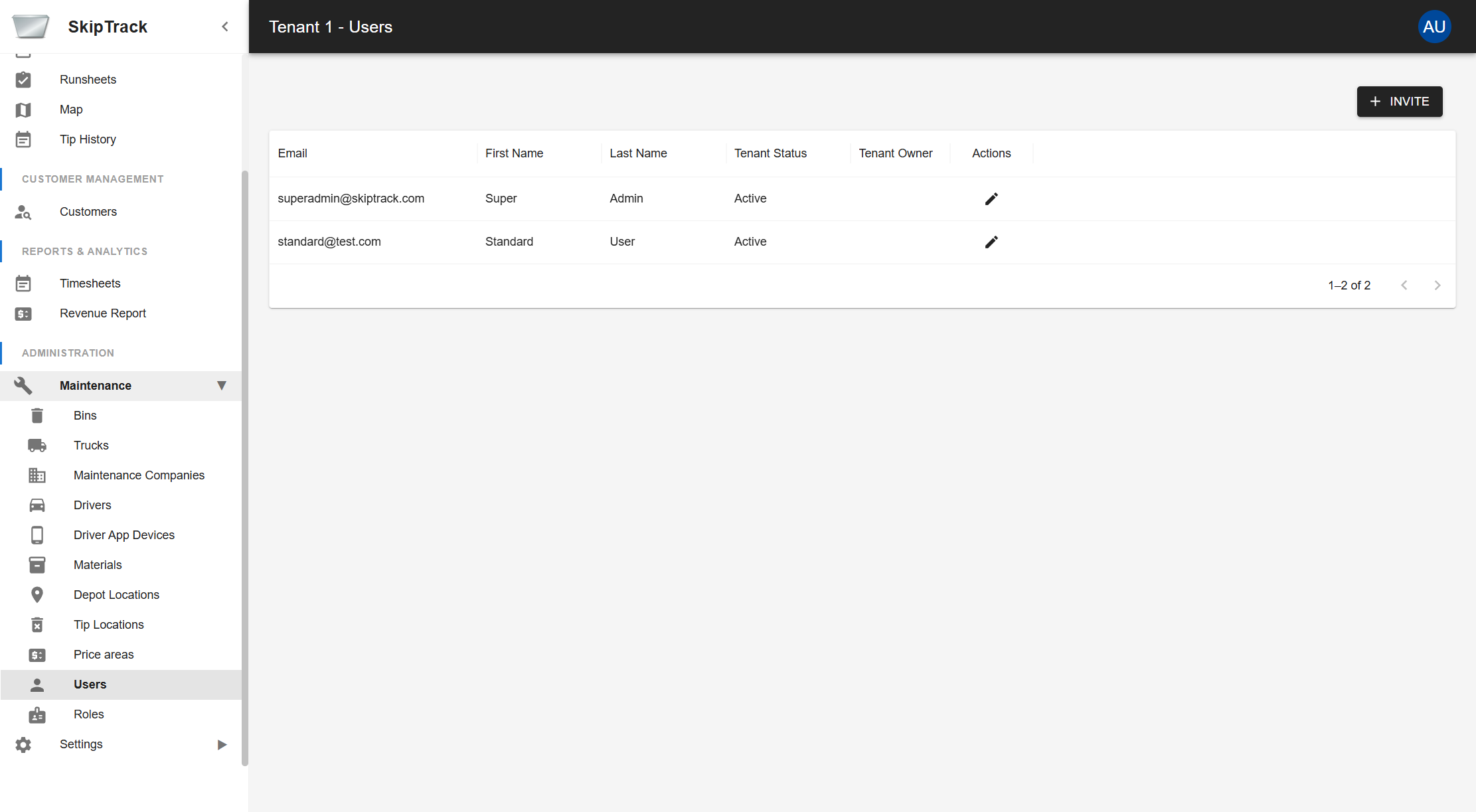
- User Accounts: Create and manage user login credentials
- Tenant Status: Monitor user status within tenant organizations
- Access Control: Manage user permissions and role assignments
- Account Lifecycle: Handle user invitations, activations, and deactivations
User Management Actions
- Invite New Users: Click "INVITE" to send invitations to new users
- Edit User Details: Use the edit action to modify user information
- Monitor Status: View active/inactive status for all users
- Tenant Ownership: Identify which users have tenant ownership rights
User Account Information
- Email Address: Primary login identifier and communication method
- Personal Details: First name, last name, and contact information
- Tenant Status: Active, inactive, or pending status within organization
- Role Assignments: Specific roles and permissions granted
Account Lifecycle Management
User Onboarding
- Invitation Process: Send secure invitation with setup instructions
- Initial Setup: Guide users through password creation and profile setup
- Role Assignment: Grant appropriate permissions based on job function
Roles Management
Purpose: Define user roles and permissions throughout the system.
Key Features
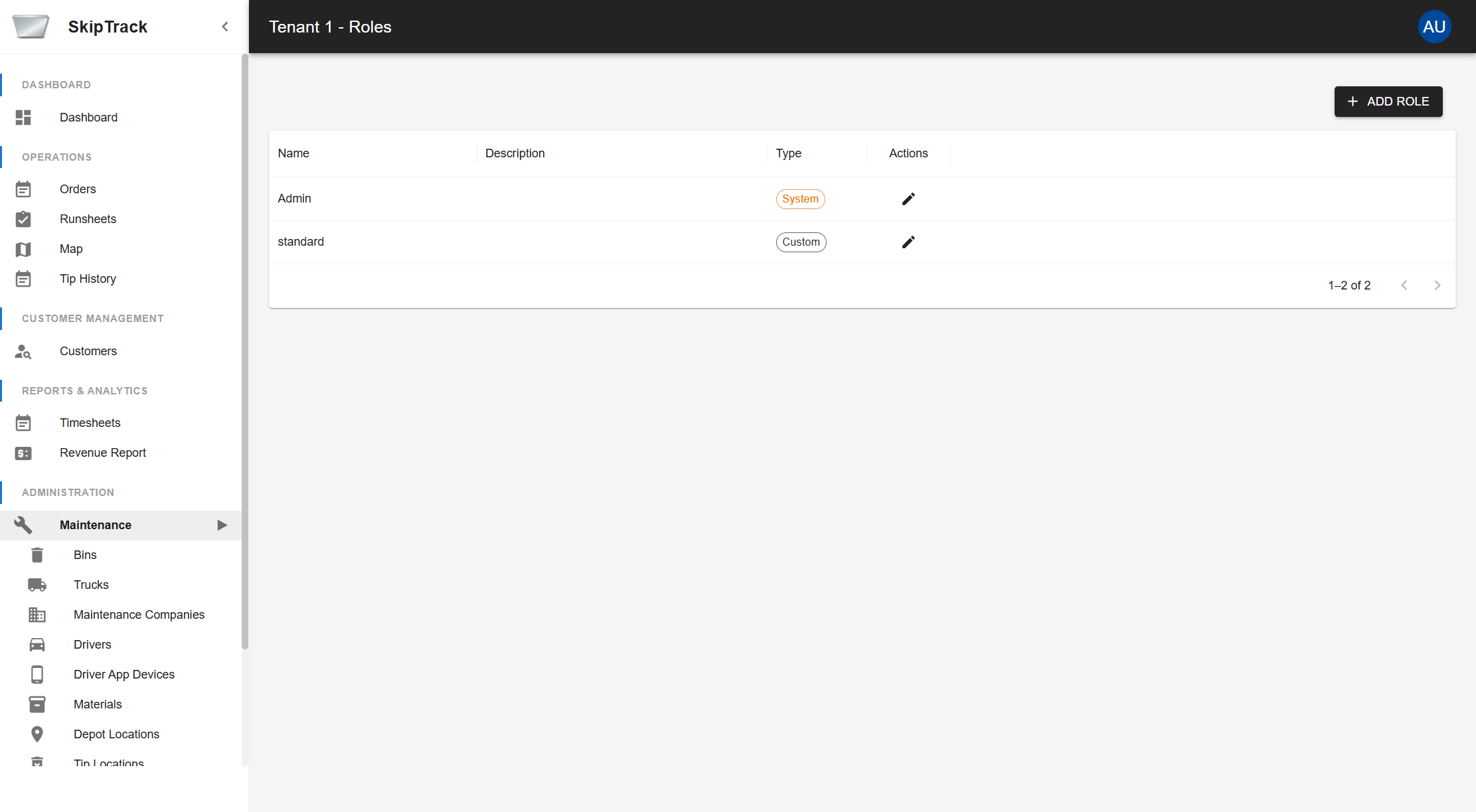
- Role List: View all system and custom roles in a data grid
- Role Types: Distinguish between System and Custom role types
- Role Management: Create, edit, and manage user roles
- Permission Control: Define what users can access based on their role
Management Actions
- Add New Roles: Use "ADD ROLE" button to create custom roles
- Edit Existing Roles: Click edit icon to modify role permissions
- Role Types: System roles vs Custom roles with different capabilities
Role Editing Interface
When editing a role, the interface provides a comprehensive tabbed view for managing both basic information and detailed permissions.
Role Information Tab
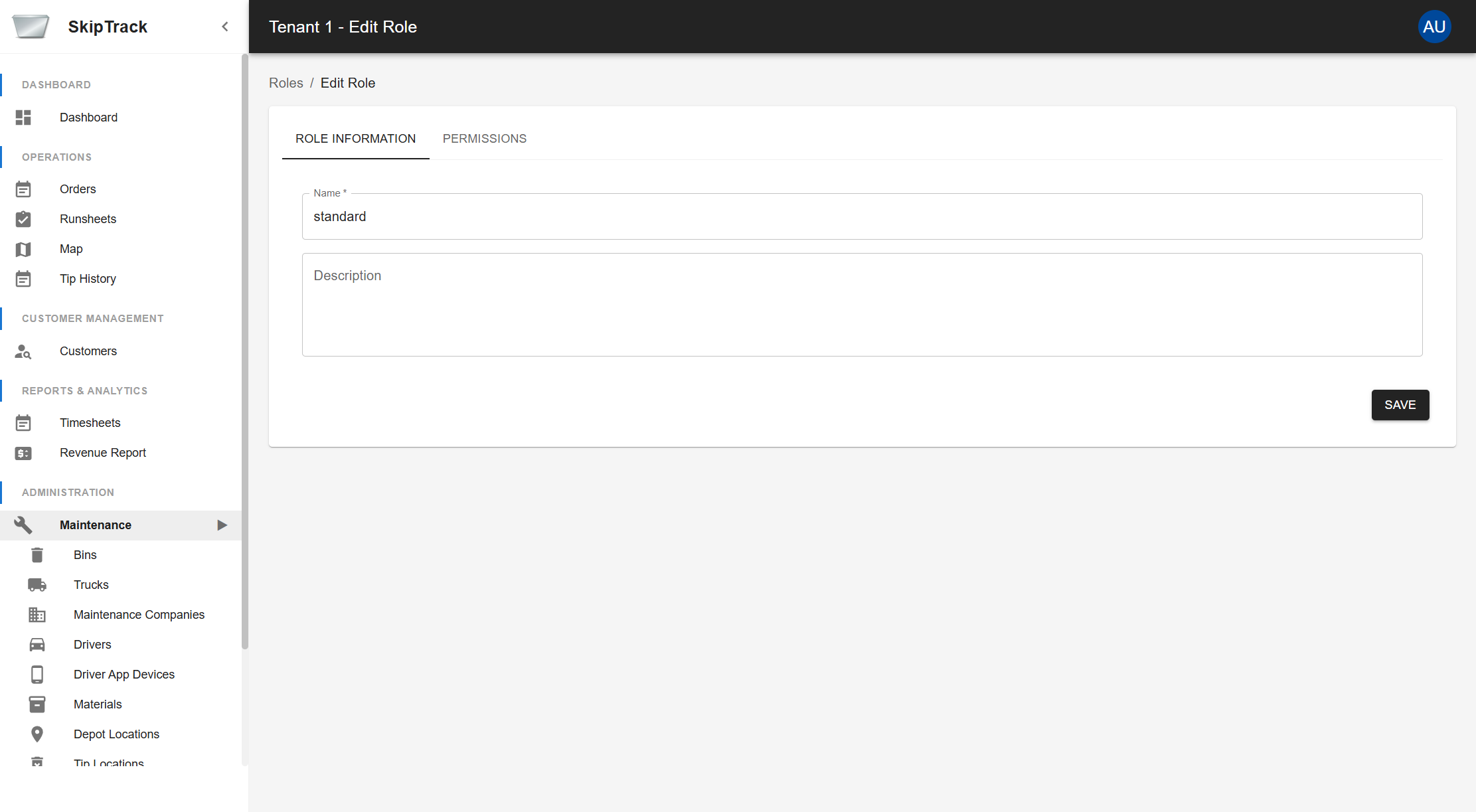
The Role Information tab allows you to:
- Edit Role Name: Modify the role's display name
- Update Description: Add or change the role description
- Save Changes: Apply modifications to the role
Permissions Tab
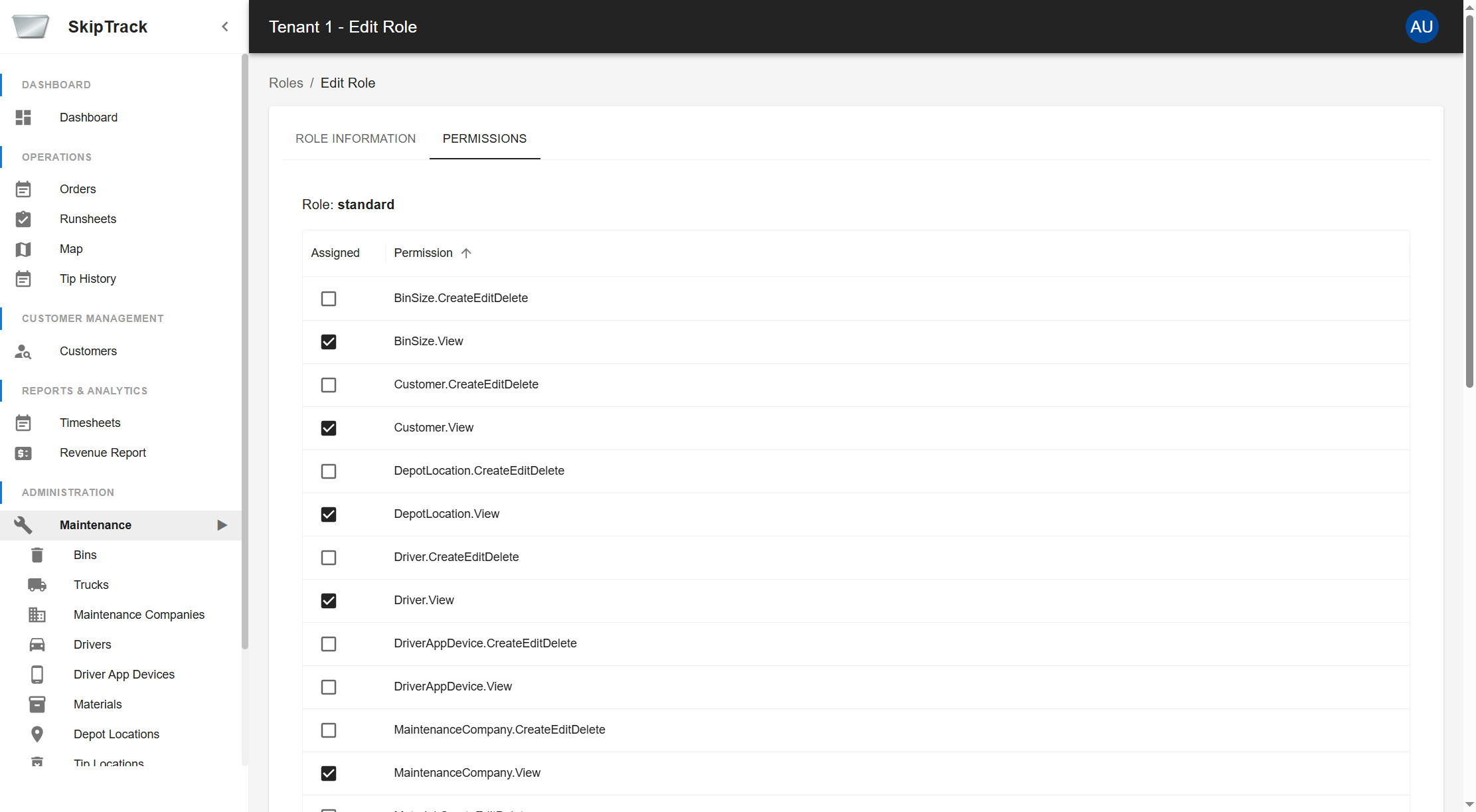
The Permissions tab provides granular control over what users with this role can access:
Permission Categories Shown:
- BinSize: View and create/edit/delete bin size configurations
- Customer: View and manage customer information
- DepotLocation: View and manage depot locations
- Driver: View and manage driver information
- DriverAppDevice: View and manage driver app devices
- MaintenanceCompany: View and manage maintenance companies
- Material: View and manage material types
- Order: View and create/edit/delete orders
- PriceArea: View and manage pricing areas
- RevenueReport: Access to revenue reporting
- Role: Manage roles and permissions
- Settings: View and modify system settings
- TipHistory: View and manage tip history
- TipLocation: View and manage tip locations
- Truck: View and manage truck information
- User: View and manage user accounts
Permission Types:
- View: Read-only access to the feature
- CreateEditDelete: Full management access including create, edit, and delete operations